Sizing and Positioning Objects
Object size and position are determined by four properties: Left, Right, Bottom, and Top. Left and Right correspond to the distance of an object’s left and right edges from the left edge of TheView in pixels. Top and Bottom correspond to the distance of an object’s top and bottom edges from the top edge of TheView in pixels. All objects include these properties, because all objects can be defined by a boundary rectangle, regardless of shape. There are no width and height properties.
|
Sizing and Positioning Objects |

The Layout menu includes options for aligning and distributing objects on TheView. These options are often used when placing an array of similar objects, such as buttons or text boxes. Many of the Layout menu options are also included in the Layout bar.
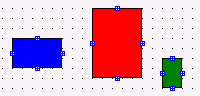
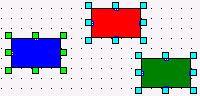
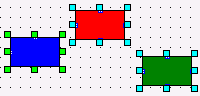
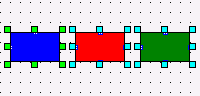
The images below show a sequence for sizing, spacing, and aligning three boxes. This process can be duplicated with any type of object. The objects are sized and positioned based on the Primary Object.
|
Unpositioned Objects |
Layout > Make Same Size > Both |
Layout > Space Evenly > Across |
Layout > Align Top |
To Make Objects the Same Size
- Select the set of objects. The objects will be sized to the Primary Object.
- Do one of the following:
- In the Layout bar, click the Make Same Size icon
 .
. - Click Layout > Make Same Size > Both.
The objects will be sized vertically and horizontally to the dimensions of the Primary Object.
This procedure can be followed using the Make Same Width or Make Same Height options instead of Make Same Size. The effect will be a resizing of only one dimension to the corresponding dimension of the Primary Object.
To Space Objects Evenly Across
- Select the set of objects.
- Do one of the following:
- In the Layout toolbar, click the Space Evenly icon
 or Space Across icon
  .
. - Click Layout > Space Evenly > Across.
- Press Alt+Right Arrow on the keyboard.
The objects will be distributed horizontally across the distance defined by the right-most and left-most objects.
To Space Objects Evenly Down
- Select the set of objects.
- Do one of the following:
- In the Layout bar, click the Space Down icon
 .
. - Click Layout > Space Evenly > Down.
- Press Alt+Up Arrow on the keyboard.
The objects will be distributed vertically across the distance defined by the top-most and bottom-most objects.
To Align Objects
- Select the set of objects.
- Do one of the following:
- In the Layout bar, click one of the icons in the Align Edges group:
|
|
Align Left |
|
|
Align Top |
|
|
Align Right |
|
|
Align Bottom |


- In the Layout > Align Objects menu, choose Left, Right, Top, or Bottom.
- Press Ctrl+Left Arrow (align left), Ctrl+Right arrow (align right), Ctrl+Up Arrow (align top), or Ctrl+Down Arrow (align bottom).
You can also snap the center of an object to the horizontal or vertical center lines of TheView. If multiple objects are selected, the midpoint will be taken to be the midpoint of the imaginary boundary around all selected objects.
To Center an Object Horizontally on TheView
- Select the object(s).
- Do one of the following:
- In the Layout bar, click the Center Horizontally icon
 .
. - Click Layout > Align Objects > Horz. Center.
- Press Shift+F9 on the keyboard.
To Center an Object Vertically on TheView
- Select the object(s).
- Do one of the following:
- In the Layout bar, click the Center Vertically icon
 .
. - Click Layout > Align Objects > Vert. Center.
- Press F9 on the keyboard.


